
 itch.io
 Gumroad
Mac Workflow
How to Save and Restore Your Entire Workspace on a Mac
Save your apps, windows, websites, files, and folders so you can return to any project without rebuilding your setup.
 Follow on X
 Join Reddit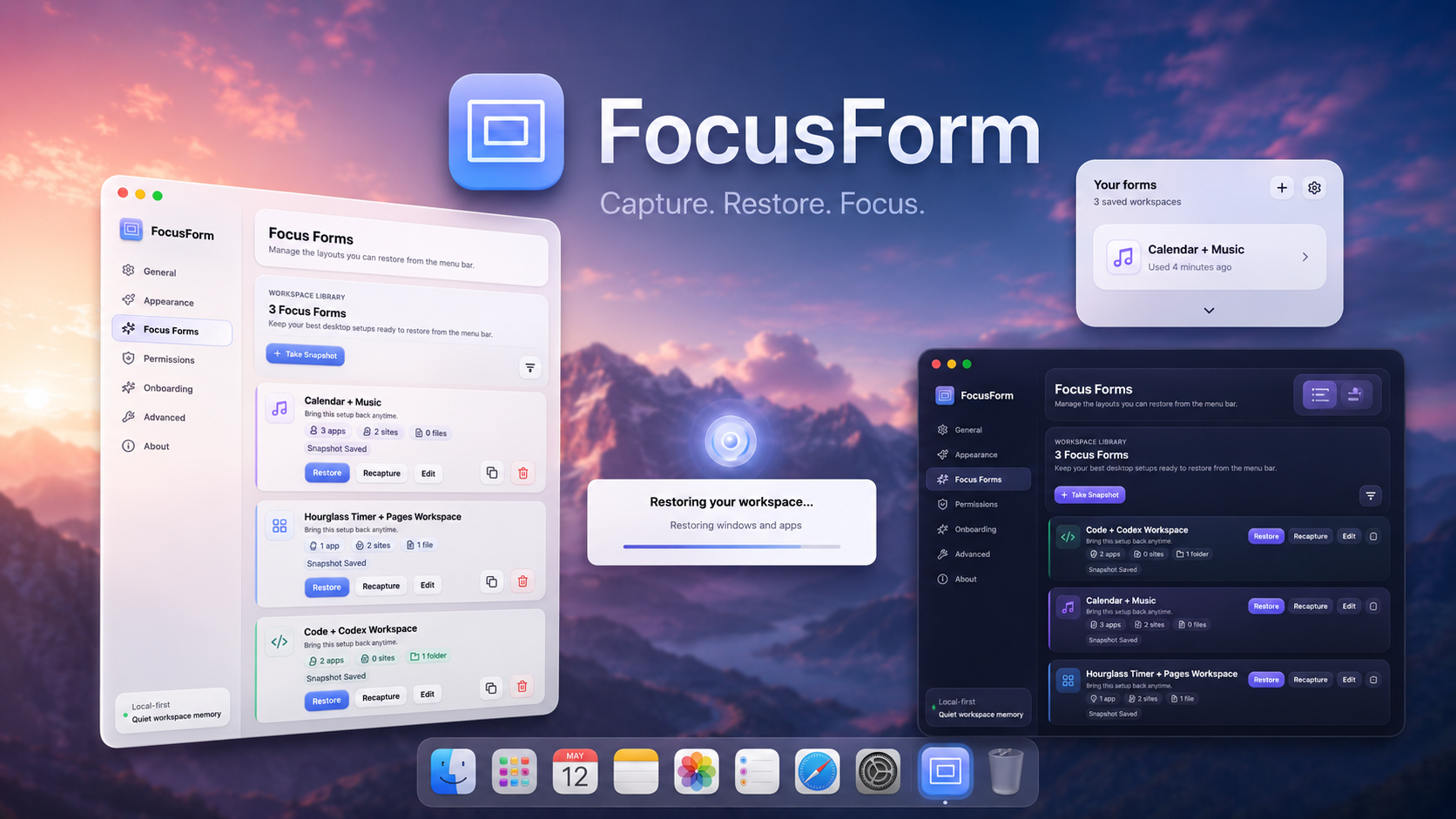
Why rebuilding a workspace gets old
Switching projects on a Mac often means rebuilding the same little environment again and again. You open the same writing app, browser tabs, Finder folders, chat window, notes, reference files, and maybe a timer or music app. Then you arrange everything just enough to start thinking clearly.
That setup time can feel small, but it adds friction every time you move between work, coding, studying, entertainment, or client projects. A good workspace system helps you return to the right context without forcing you to remember every piece by hand.
The easiest way to audit your own workspace is to pause before closing it. Write down what you would be annoyed to reopen later. If that list includes more than two or three things, you are dealing with a repeatable workspace rather than a single app session.
What a complete Mac workspace includes
A workspace is more than a list of open apps. It can include applications, browser windows, websites, documents, project folders, reference images, notes, and the rough position of windows on your display. For some people, it also includes a particular desktop, a Finder view, or a menu bar utility.
The goal is not to make your Mac rigid. It is to make common modes easy to resume. A writing workspace may need a draft, notes, research tabs, and a quiet timer. A coding workspace may need an editor, terminal, docs, issue tracker, and project folder.
Reopen apps with Login Items
macOS can open selected apps when you sign in. In System Settings, go to General, then Login Items. This is useful for apps you need every day, such as a password manager, calendar, or communication app.
Login Items are less useful for project-specific work because they run at startup rather than when you choose a mode. If you only need an app for one project, launching it every time you log in can create clutter.
Restore browser tabs with tab groups or saved sessions
Safari tab groups, browser bookmarks, and saved browser sessions are good for recurring research sets. Create a tab group for a project, then keep important websites together instead of relying on memory or browser history.
This solves the web part of the problem, but not the whole workspace. It will not reopen local files, arrange app windows, or bring back the Finder folders you were using alongside those tabs.
Reopen recent files and folders
Finder's Recents view, app-specific Open Recent menus, and the Apple menu's Recent Items can help you recover a document you touched recently. They work best when you know roughly what you are looking for.
If the problem is broader than one missing document, read the guide on finding recently saved files on a Mac. It covers Finder filters, Spotlight, Downloads, and app-level recent files in more detail.
Use macOS window management
macOS includes window tiling controls, Mission Control, Spaces, Stage Manager, and full-screen modes. These tools can reduce visual mess and help you group work by display or desktop.
They are good for arranging what is already open. They are not a complete memory system for reopening a full project setup later, especially when your setup includes files, folders, and websites.
Window management also works better when you treat it as cleanup, not memory. Arrange the windows once the right things are open, but do not expect Spaces or tiling to remember every document, website, or folder you need for the next session.
Where manual rebuilding falls short
Manual systems are flexible, but they ask you to remember too much. You might bookmark the tabs, pin a Finder folder, and rely on Open Recent for documents, but the setup still lives in several places.
The more often you switch modes, the more valuable a dedicated workspace snapshot becomes. It gives you one action that represents the whole context instead of a checklist you rebuild from scratch.
Save different work modes
Think in terms of modes rather than apps. A work mode might include email, planning notes, and a project folder. A coding mode might include your editor, terminal, documentation, and issue tracker. A study mode might include PDFs, notes, flashcards, and a browser tab group. An entertainment mode might include a media app and a few casual windows.
Name each setup clearly. Keep only what belongs there. A smaller, cleaner workspace is easier to trust than a snapshot that opens everything you happened to have running.
How FocusForm captures and restores a workspace
FocusForm is built for this exact routine. Based on the current FocusForm page, it can save and restore relevant apps, windows, websites, files, folders, and per-project workspace setups. The idea is simple: set up your desktop once, save it, then bring it back from your Mac menu bar when you need that context again.
It does not replace good organization. It gives your organization a button. When you already know the setup that helps you work, FocusForm makes it easier to return to that setup without rebuilding it piece by piece.
Privacy and local-first behavior
FocusForm's product page says workspace snapshots are saved locally on your Mac and are not sent to the cloud. That matters because workspace data can reveal files, projects, and habits. A local-first tool is a better fit for this kind of personal desktop context.
Tips for clean workspace snapshots
Before saving a workspace, close anything that does not belong. Use clear names such as Client Admin, Writing Drafts, Study Night, or Coding Main App. Review snapshots occasionally and remove stale files or websites.
Keep a small number of trusted setups instead of saving every temporary state. The point is to reduce friction, not create a new library you have to manage.
A good snapshot should feel boring in the best way. Open it, check that the right materials appear, and get back to the project. If a saved workspace surprises you with old tabs or unrelated windows, trim it before it becomes another source of noise.
Conclusion
macOS gives you several ways to reopen pieces of your work, from Login Items to recent files and browser tab groups. Those tools help, but they do not always restore the full feeling of a workspace. When you switch between repeatable modes, a saved workspace can make your Mac feel calmer and more ready.
 Related: File Fetch
 Related: PopNote
 Related: ScreenShelf