
 itch.io
 Gumroad
Mac Productivity
How to Create Pop-Up Reminders on a Mac That Are Hard to Miss
Set visible reminders that appear at the right moment instead of disappearing into Notification Center.
 Follow on X
 Join Reddit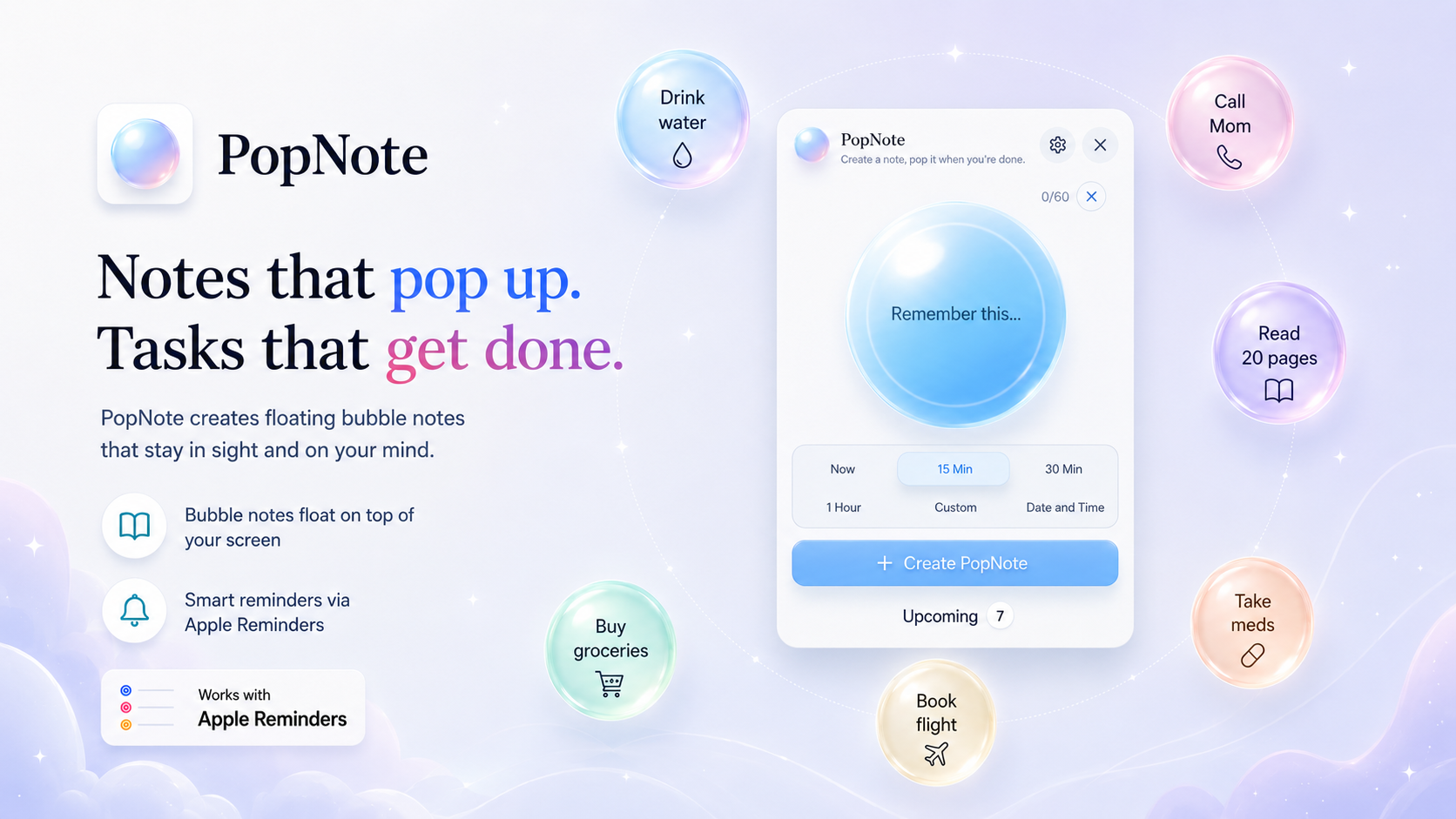
Why ordinary notifications are easy to miss
Small Mac notifications are useful until they vanish into the corner while you are reading, presenting, writing, or deep in another app. Sometimes you need a reminder that does not feel like a full task management system, but also does not disappear before you notice it.
The right reminder method depends on the job. Some reminders belong in a list. Some belong on a calendar. Some simply need to appear at the right moment and stay visible long enough to act on.
The common failure is not laziness. It is attention. If you are focused on a call, a document, or a full-screen app, a quiet banner can appear and disappear before your brain has room to process it.
Create timed reminders with Apple Reminders
Apple Reminders is the best built-in place for tasks that should live in a list. Create a reminder, add a date or time, and let macOS notify you. You can also use lists for work, home, errands, and shared tasks.
For many people, this is enough. The limitation is visibility. A notification can be missed, dismissed accidentally, or buried under other alerts.
Create repeating reminders
Repeating reminders are useful for habits and routines: watering plants, paying a bill, taking out trash, checking backups, or preparing for a weekly meeting. In Reminders, set a repeat interval so the task comes back automatically.
Keep repeating reminders specific. If every small task repeats forever, the list becomes easy to ignore.
Review macOS notification settings
Open System Settings, then Notifications. Check whether Reminders, Calendar, and other apps are allowed to show banners, alerts, sounds, and lock screen notifications.
Alert style matters. A banner disappears automatically. An alert stays until you dismiss it. If you miss important reminders, switching the relevant app to alerts may help.
Use Calendar alerts for scheduled events
Calendar is better for events than loose tasks. Calls, meetings, appointments, classes, and pickup times usually belong on your calendar because they are tied to a specific block of time.
Use one or more alerts before the event. For something important, set an early alert and a second alert close to start time.
Use Stickies for persistent visual notes
Stickies is an old but still useful Mac app for persistent notes. A sticky note can sit on screen as a visual cue while you work. It is not timed by default, but it is hard to miss once placed in a visible spot.
Use Stickies for temporary context, not every task. Too many visible notes become wallpaper.
The difference between a task list and a timely reminder
A task list helps you decide what needs doing. A timely reminder interrupts you at the moment action is needed. Confusing the two creates friction. A grocery list does not need to pop up every hour. A medication reminder probably should appear at the right time.
Choose the lightest tool that will actually get your attention.
One helpful rule is to separate reminders by consequence. Low-consequence ideas can live in Notes. Trackable tasks can live in Reminders. Time-sensitive moments deserve a stronger visual cue, especially when missing them creates extra work.
Choosing the right reminder method
Use Reminders for trackable tasks, Calendar for scheduled events, notification settings for important alerts, and Stickies for always-visible notes. If you want something more visual and moment-based, a dedicated pop-up reminder can fit better.
How PopNote creates pop-up reminders
PopNote is described on its current product page as a lightweight macOS menu bar app for colorful floating bubble notes. The product wording is simple: A pop-up reminder that appears when you actually need it.
You write a quick reminder, choose when it should appear, and let it float on your desktop until you pop it away. That makes it useful for reminders that should be visible without opening a full notes app, calendar, or task manager.
PopNote timing and repeating options
The current PopNote page lists menu bar access, Apple Reminders sync, quick timing options, daily and weekly repeats, colorful bubble styles, and Light and Dark Mode. Those features make it suitable for both one-off reminders and simple recurring routines.
Ways to use PopNote
PopNote fits small, practical reminders: take a break, drink water, take medication, call someone back, move laundry, start a meeting, begin a chore, check the oven, or repeat a weekly routine.
It is most useful when the reminder needs to be seen, not merely stored.
Tips for avoiding reminder overload
Do not turn every thought into a pop-up. Reserve visible reminders for moments that truly need attention. Group less urgent tasks in Reminders or Notes. Keep wording short and action-oriented, such as Call Sam at 3 or Move laundry.
Review recurring reminders once in a while. If you keep dismissing the same one without acting, change the time, rewrite the message, or remove it. A reminder system stays useful only when it reflects how your day actually works.
Conclusion
macOS gives you Reminders, Calendar, notifications, and Stickies, and each has a place. For small moments that need a visible cue at the right time, a focused pop-up reminder can be easier to notice and easier to dismiss when the job is done.
 Related: FocusForm
 Related: File Fetch
 Related: ScreenShelf