
 itch.io
 Gumroad
macOS Guide
How to Find Recently Saved Files on a Mac
Learn the fastest ways to locate recently saved and opened files without digging through folders.
 Follow on X
 Join Reddit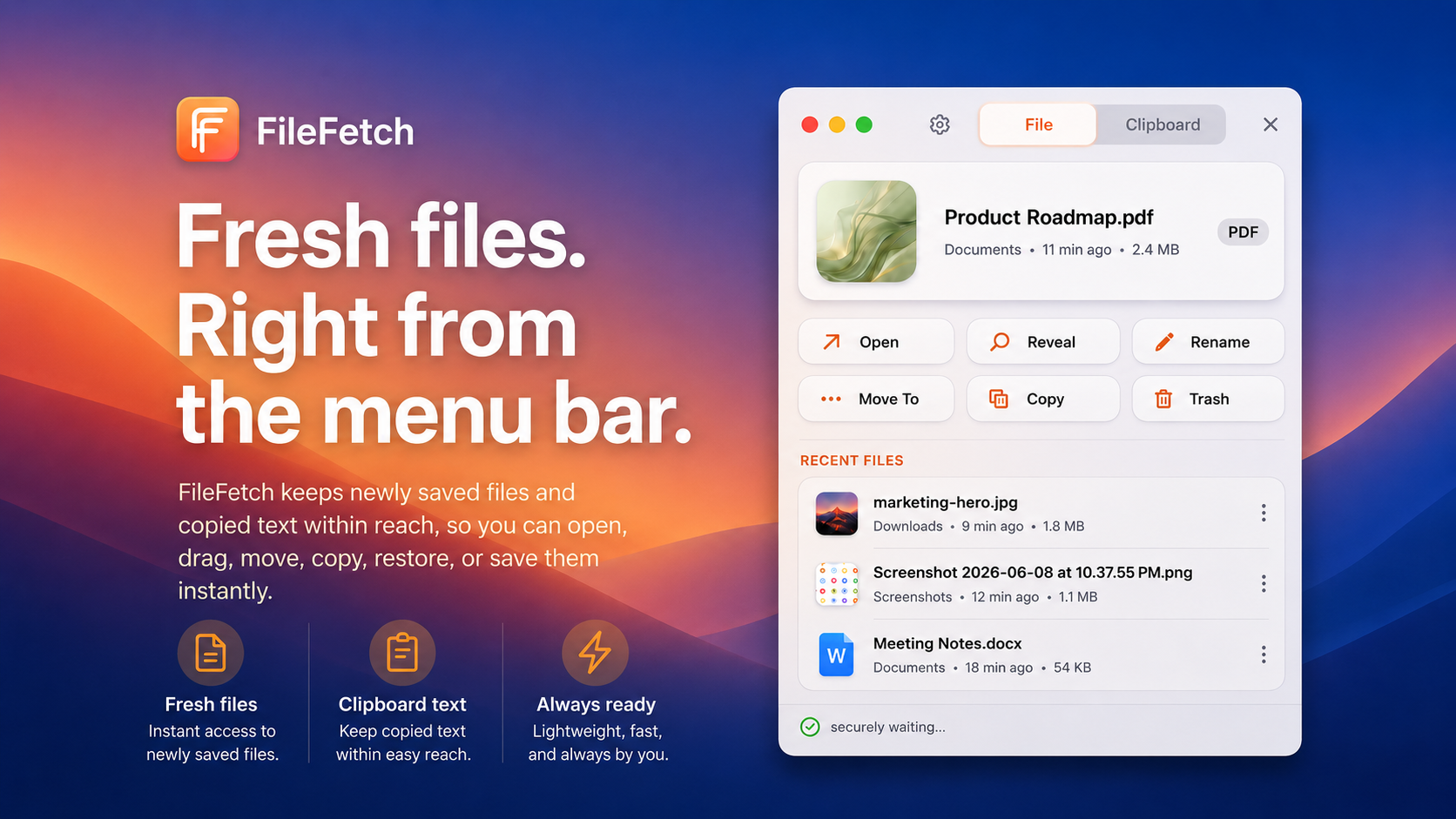
The quiet panic of a missing file
You download a PDF, export an image, save a document, or drag something out of an app. A minute later you need it, and suddenly the question appears: where did that file go?
This happens because macOS gives apps flexibility. One app may save to Downloads, another to Documents, another to the last folder you used. The good news is that macOS has several built-in ways to recover recent files before you start digging through every folder.
Before searching everywhere, think about what just happened. Did you download it from a browser, export it from an app, scan it from another device, or receive it through AirDrop? The path that created the file usually points to the first folder worth checking.
Use Finder's Recents section
Open Finder and choose Recents from the sidebar. This view collects files you have recently opened or modified. It is often the fastest first stop when you remember using a file but not where it lives.
Use list view if the visual grid feels crowded. Add columns such as Date Modified, Date Added, and Kind so the newest items are easier to scan.
Sort by Date Added or Date Modified
If you know the likely folder, sort it by Date Added or Date Modified. Downloads, Desktop, Documents, and project folders are the usual suspects. Date Added is useful for downloaded items. Date Modified is better for documents you edited or exported.
Be aware that copying a file can change added dates, while editing changes modified dates. If one sort does not reveal it, try the other.
Search with Finder filters
Finder search becomes much more useful when you add filters. Press Command-F in Finder, choose This Mac or the current folder, then filter by Kind, Last Modified Date, or Created Date.
If you know the file type, search for PDF, image, presentation, spreadsheet, or document. If you know only part of the name, combine that text with a date filter.
Check common save locations
Many files land in Downloads, Desktop, Documents, iCloud Drive, or the folder you last used in that app. Screenshots usually go to the Desktop unless you changed the screenshot destination.
For browser downloads, check your browser's downloads list too. Safari, Chrome, and other browsers usually keep a recent download history that can reveal the file location.
Use the Apple menu's Recent Items
The Apple menu includes Recent Items for apps, documents, and servers. It is not as detailed as Finder search, but it can quickly reopen something you touched recently.
This is especially useful when you remember the app but not the file. Reopen the recent document, then use Save As, Show in Finder, or the title bar location menu when available.
Find files recently opened by an individual app
Many Mac apps have File, then Open Recent. This list is often better than Finder when the file was opened inside a specific app. Preview, Pages, Numbers, Keynote, design tools, editors, and media apps commonly support it.
If the file opens, use the app's document proxy icon, title menu, or Reveal in Finder option if available.
For creative apps, export dialogs often remember the last folder used by that same app. If you exported something from a photo, audio, or design tool, reopen the export command and look at the folder it suggests before saving anything new.
Use Spotlight for filenames and file types
Press Command-Space and search for part of the filename, a file extension, or a word inside the document. Spotlight is quick when indexing is healthy and the file is in a location macOS can search.
Try terms such as .pdf, .png, invoice, screenshot, export, or the project name. If Spotlight finds too much, move to Finder filters for better control.
Why Finder's Recents may not show what you expect
Recents is helpful, but it is not magic. External drives, cloud folders, app sandboxes, privacy settings, and indexing delays can affect what appears. Some temporary exports may also disappear if the source app cleans them up.
That is why it helps to combine Recents, Finder filters, app-level recent menus, and common folder checks.
How File Fetch keeps recent files accessible
File Fetch is a QuietWare menu bar app for the things you just used and still need nearby. Its current product page describes recent files, screenshots, downloads, images, links, and copied text, with actions such as open, reveal, rename, move, copy, trash, and save or reuse snippets.
It is not trying to replace Finder. It gives your freshest items a small, quick place in the menu bar so you do not have to interrupt your work to hunt for them.
How File Fetch handles recently copied text
Copied text is easy to lose because the clipboard usually only feels visible at the moment you copy it. File Fetch's product page says it keeps recent copied text accessible and supports saving and reusing snippets.
That can help with temporary values like tracking numbers, URLs, notes, filenames, or message drafts that you need again a few minutes later.
Build a more reliable file workflow
Choose a default landing place for exports. Name files before you save them. Keep Downloads and Desktop from becoming permanent storage. For active project materials, consider a visual workspace like the one covered in the guide to keeping files, screenshots, links, and notes close while you work.
If this problem happens often, add a small ritual to the moment you save or export: rename the file, move it to the project folder, or immediately reveal it in Finder. Ten seconds of naming can save several minutes of searching later.
Conclusion
Finding a recent file is usually a matter of checking the right signal: Recents, date sorting, Finder filters, common folders, app histories, or Spotlight. Once you know where files tend to disappear in your workflow, you can make the path back much shorter.
 Related: FocusForm
 Related: PopNote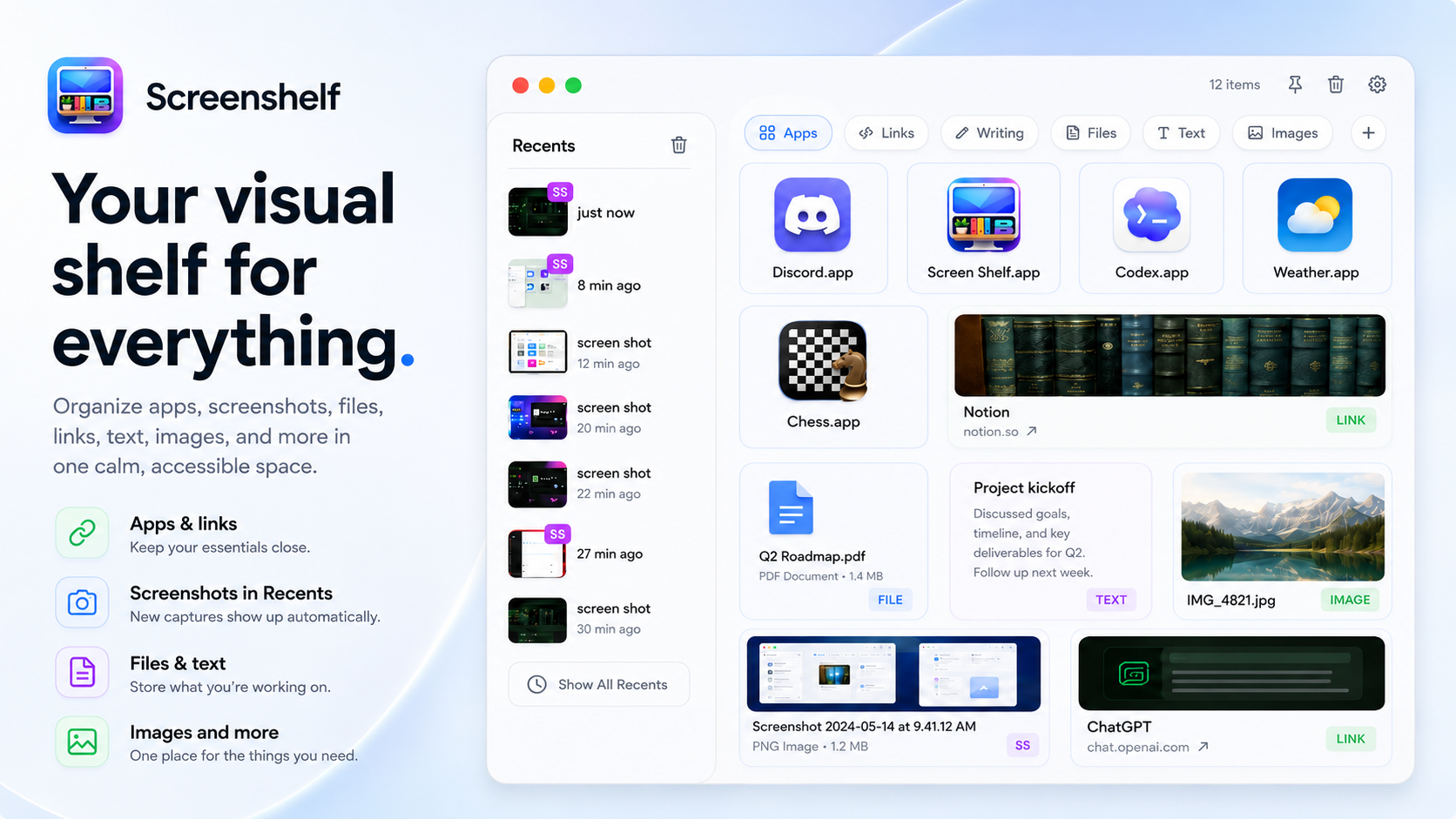
 Related: ScreenShelf