
 itch.io
 Gumroad
Mac Workflow
How to Keep Files, Screenshots, Links, and Notes Close While You Work on a Mac
Build a cleaner visual workspace for the files, screenshots, links, text, and apps connected to your current project.
 Follow on X
 Join Reddit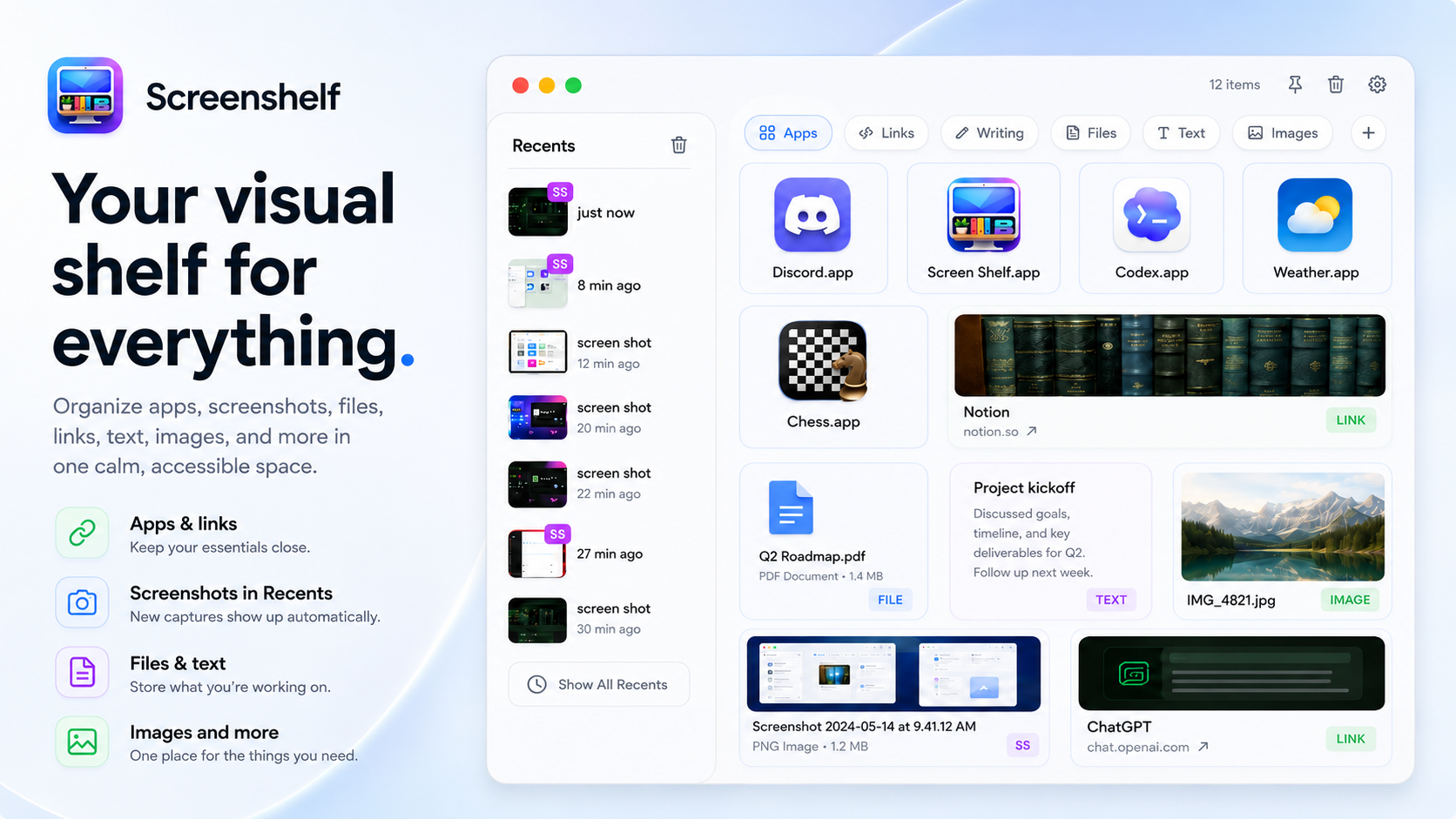
When project clutter spreads everywhere
Active projects rarely stay in one tidy folder. A normal work session can scatter files across Desktop, Downloads, Finder windows, browser tabs, screenshots, copied text, links, and Notes. The mess is not always a sign of bad organization. Sometimes it is a sign that the work is alive.
The trick is giving temporary project materials a place to live while they are active, so your Mac stays usable without forcing you into a complicated system.
The goal is not a perfectly clean Desktop every minute of the day. The goal is recoverability. When you can tell what belongs to the current project, what can be archived, and what can be deleted, your workspace becomes easier to trust.
Create a dedicated project folder
Start with a simple project folder. Put drafts, exports, images, PDFs, and reference files in one place. Give the folder a clear name and keep it somewhere predictable, such as Documents, iCloud Drive, or a client folder.
A folder is still the foundation. Even if you use other tools, files need a real home when the project is done.
Add important folders to Finder Favorites
Drag your project folder into Finder's sidebar. This makes it reachable from open and save dialogs, not just Finder windows. Remove it when the project ends so Favorites stays useful.
Use Smart Folders where appropriate
Smart Folders can collect files by rules such as tag, kind, date, or name. They are useful for recurring searches, like all screenshots from this week or all PDFs tagged with a project name.
They are less useful for quick one-off materials. If setting up the rule takes longer than finding the file, keep it simple.
Keep commonly used folders in the Dock
You can drag a folder to the right side of the Dock for quick access. This works well for a downloads folder, project folder, or folder of reference files.
Use this for folders you open many times a day. Otherwise the Dock can become another crowded place.
Use Notes or Stickies for temporary information
Notes is good for project notes, meeting details, outlines, and research snippets. Stickies is useful for short visible reminders or temporary text that needs to stay on screen.
If you are only holding a short bit of text for a few minutes, a recent-files and copied-text tool such as File Fetch may also help keep it close.
Temporary text deserves the same care as temporary files. Meeting links, command snippets, draft messages, and copied IDs can be useful for a short window, then become distracting if they linger too long.
Organize screenshots without losing track
Screenshots are often the first thing to clutter the Desktop. If a project uses many screenshots, change your screenshot destination, move them into a project folder, or rename the important ones immediately.
A screenshot with a meaningful name is much easier to find than one more Screen Shot timestamp in a sea of icons.
Why more Finder windows can create more clutter
Opening another Finder window feels harmless, but a pile of windows can become a second desktop mess. You might know the file is open somewhere, but not which window, tab, or Space contains it.
Use Finder windows for storage and movement. Use a project shelf or sidebar-like system for active materials you need to glance at repeatedly.
How ScreenShelf creates a visual project shelf
ScreenShelf is QuietWare's visual shelf for everything. Its current product page says it gives you one calm place to keep files, screenshots, links, text, images, apps, and active work items instead of digging through Finder, Downloads, your desktop, or scattered folders.
It is made for the middle of work, when items are still active and useful but do not necessarily belong as permanent desktop clutter.
Types of items ScreenShelf can hold
Based on the current ScreenShelf page, it can hold project files, research items, screenshots, images, quick links, text snippets, apps, and temporary work materials. The page also mentions pages for workflows, custom names and icons, colors, images, labels, a Recents panel, Light, Dark, and Glass modes, and pin on top.
Organize shelves into pages or project groups
Use pages for different workflows or project groups. For example, one page can hold writing references, another can hold design assets, and another can hold admin items. Keep each page small enough to scan quickly.
ScreenShelf works best when it supports your project folder rather than replacing it.
Keep a visual workspace useful instead of crowded
Review your shelf at the end of a session. Remove finished items, archive important files to the project folder, and keep only the materials you still need. Give items clear labels when the thumbnail alone is not obvious.
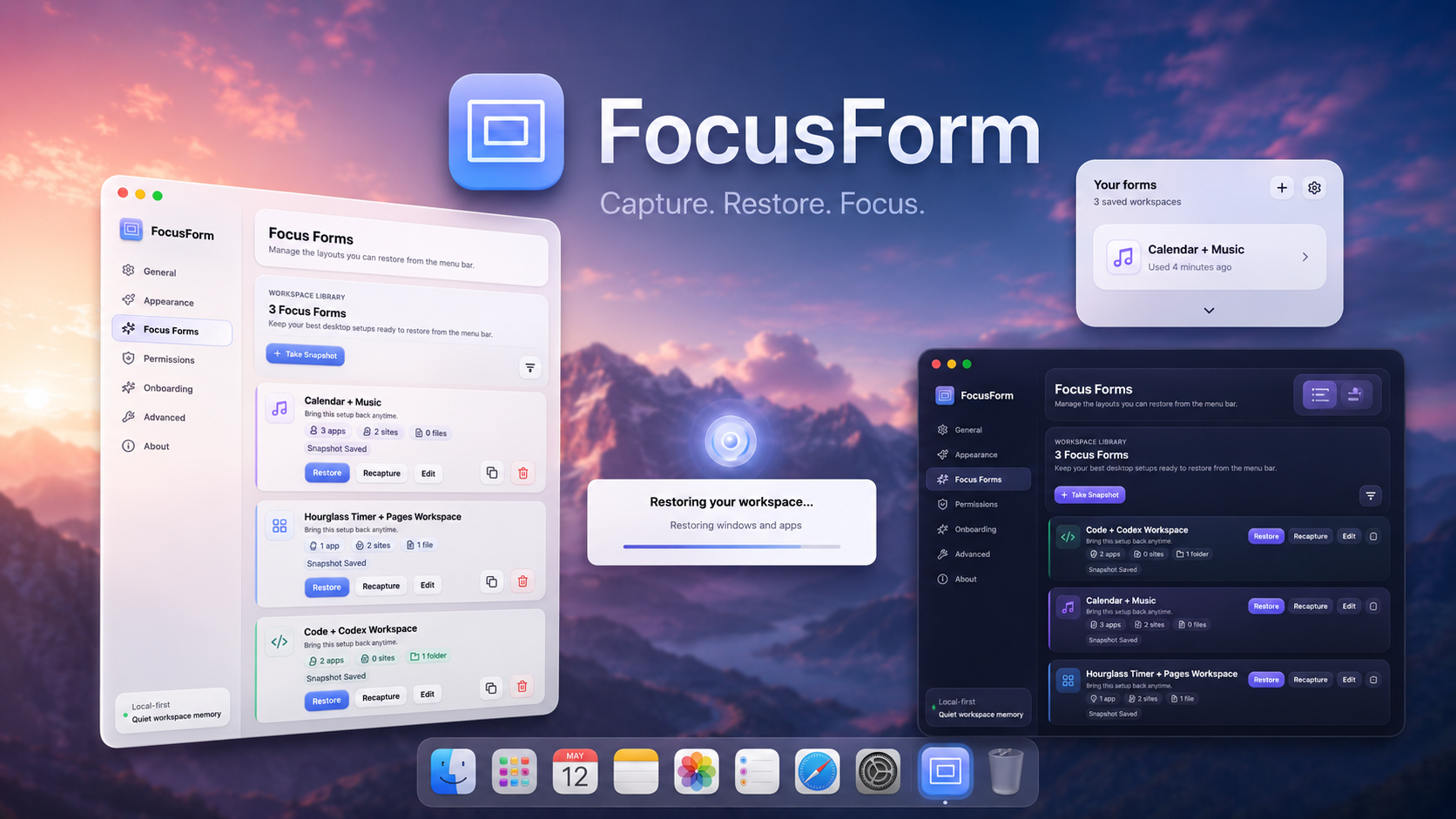
If you save and restore whole working contexts, the guide on saving and restoring a Mac workspace pairs well with this kind of active project shelf.
A visual workspace should be pruned like a desk at the end of the day. Keep what still supports the next session, move finished materials to their folder, and remove anything that no longer helps you make a decision.
Conclusion
Finder folders, Favorites, tags, Smart Folders, Dock folders, Notes, and Stickies all help organize project materials. The missing piece is often a visual place for active items. When you give temporary work a clear shelf, your desktop can stay calmer while your project keeps moving.
 Related: FocusForm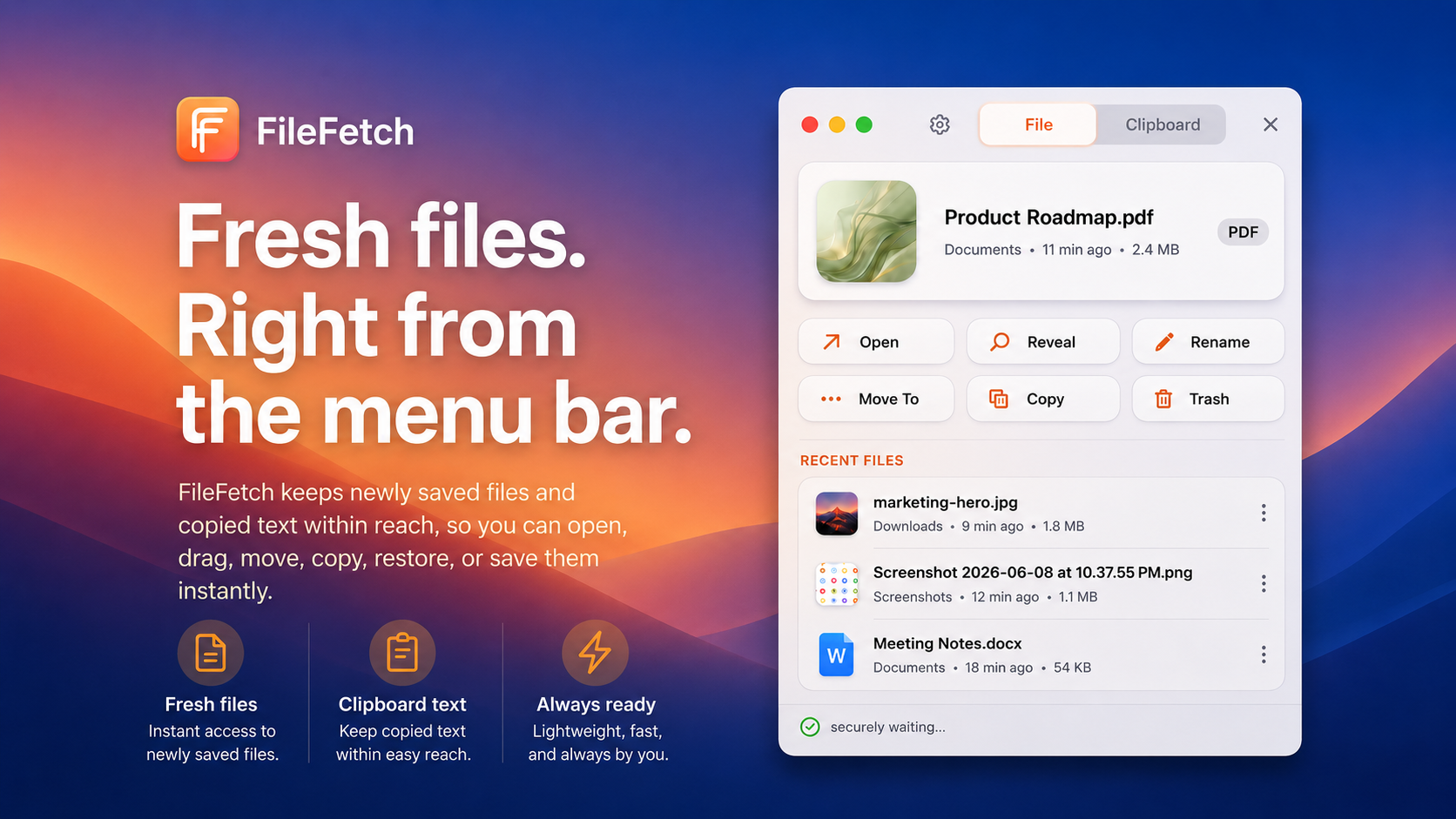
 Related: File Fetch
 Related: PopNote