 itch.io
 Gumroad
Mac Workflow
How to Organize Your Digital Workspace on a Mac
Organize active projects without filling your desktop with scattered screenshots, folders, documents, browser tabs, and temporary files.
 Follow on X
 Join Reddit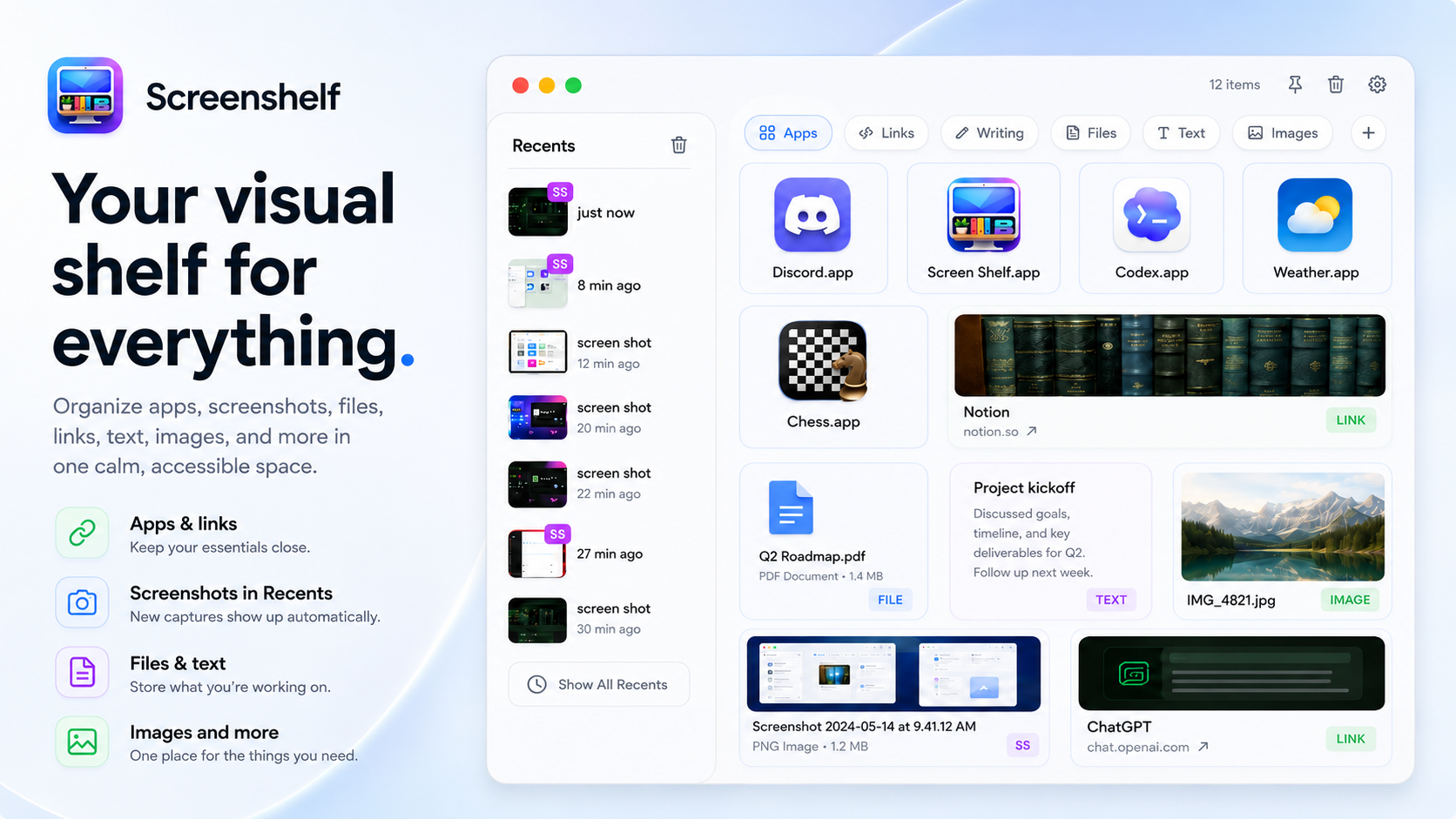
Why active projects get messy
A tidy folder system is useful, but it is not always fast enough for work that is still moving. When you are writing, designing, studying, or coding, the materials you need are often half-finished: a screenshot from ten minutes ago, a PDF you are comparing, a copied link, a note from a call, a Finder folder, and a few browser tabs you do not want to lose.
That is why many Mac desktops become temporary storage. The desktop is visible, quick, and easy to drag onto. The problem is that it also becomes a pile. After a few sessions, useful project material blends with old exports, installers, screenshots, and files you meant to file away later.
A better system separates long-term storage from active materials. You still keep permanent files in folders, but you give current work a short-term place to stay while it is relevant.
Separate storage from active materials
Think of your project folder as the archive and your active workspace as the workbench. The archive is where files belong when they are named, sorted, and ready to keep. The workbench is where temporary items sit while you are deciding what they are for.
On a Mac, that usually means keeping a real project folder in Documents, iCloud Drive, or another predictable location. Use that folder for final drafts, source files, exports, client assets, class materials, and anything you would need a month from now.
Active materials can be lighter. They may include screenshots, notes, reference links, copied text, downloads, apps, and folders you are touching repeatedly today. Those items should be easy to scan without becoming permanent desktop clutter.
Create a visual project area
A visual project area works best when it is small enough to understand at a glance. Instead of opening five Finder windows, keep the most important items together: the folder you are working from, the latest screenshot, a link to the research page, a note with the next step, and the app you keep returning to.
This is where ScreenShelf fits naturally. The product page describes it as a visual shelf for files, screenshots, links, text, images, apps, and active work items. It also supports pages, so different projects or modes can have their own space.
The goal is not to move your whole file system into a shelf. The goal is to keep the small set of things you are actively using close enough that you do not keep scattering them across the desktop.
Keep recent files easy to retrieve
Even with a good project folder, recent files can disappear into Downloads, Desktop, app export folders, or whatever folder a dialog remembered last. Finder Recents, Spotlight, and app-level Open Recent menus help, but they require you to stop and search.
File Fetch is designed for this small interruption. Its product page describes quick access to recent files, screenshots, downloads, images, links, and copied text from the menu bar, plus file actions such as open, reveal, rename, move, copy, and trash.
For active work, that means you can recover the file you just downloaded or the text you just copied without turning the search into a separate task. For a deeper built-in workflow, the guide on finding recently saved files on a Mac covers Finder and Spotlight methods in more detail.
Save layouts for repeat projects
Some projects require the same layout every time: a writing app, a notes window, a folder, a research tab group, and a communication app. If you rebuild that setup more than once, it is no longer a one-off. It is a workspace.
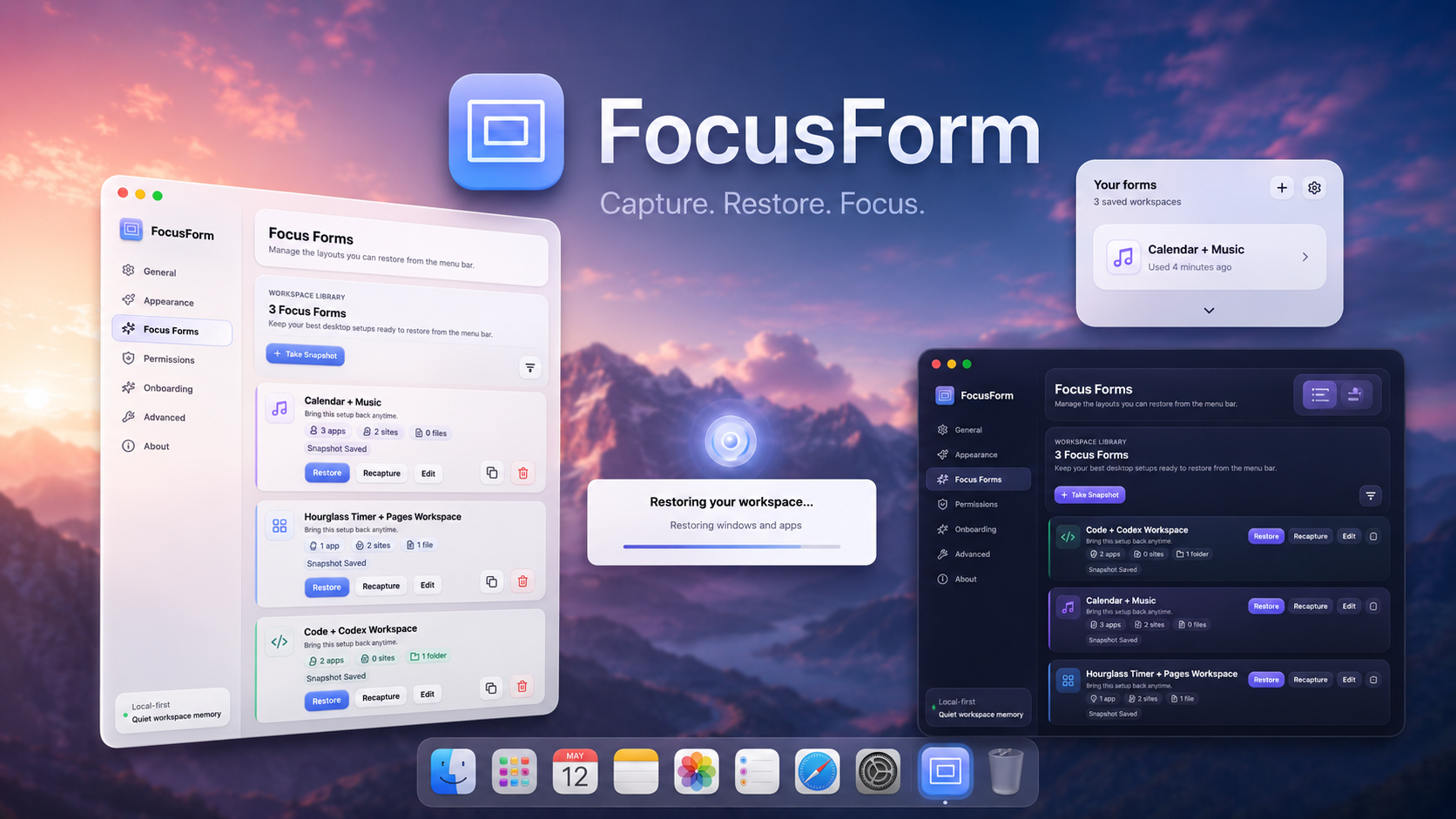
FocusForm helps with repeatable setups by saving and restoring Mac workspaces. The current product page describes saving apps, windows, websites, files, and folders into a workspace snapshot so you can return to a setup later.
Use separate workspaces for real modes, not every tiny task. A writing workspace, design workspace, coding workspace, study workspace, and admin workspace are easier to maintain than dozens of nearly identical snapshots.
A practical workflow for a study or writing session
Start by opening the project folder and moving permanent materials there. Keep drafts, exported PDFs, source images, and class notes in the folder rather than on the desktop.
Next, gather active materials into a small visual area: the current draft, the screenshot you need to reference, the research link, a short note, and the app or folder you keep returning to. If you use ScreenShelf, this can become a dedicated page for that project.
While working, use File Fetch when a download, screenshot, or copied text snippet disappears from attention. At the end, move finished files back into the project folder, remove stale temporary items, and save the layout with FocusForm if this is a setup you will use again.
Where QuietWare tools fit
The built-in macOS tools still matter. Finder folders, Recents, Spotlight, tags, and browser tab groups are all useful. QuietWare apps are meant to sit beside those tools, not replace them.
ScreenShelf is useful when active materials need a visible project area. File Fetch is useful when the thing you just touched needs to be retrieved quickly. FocusForm is useful when the whole workspace is worth saving and restoring.
You can browse the QuietWare apps section when you want a set of focused Mac tools for this kind of workflow, including ScreenShelf, FocusForm, File Fetch, PopNote, and GeekDock.
Conclusion
A clean Mac workspace is not about hiding everything in folders. It is about knowing what is permanent, what is active, and what can be cleared away. Keep long-term files in real folders, keep current materials visible but contained, and save repeatable setups when they are worth returning to.
When your desktop stops acting as a catch-all, your projects become easier to restart and easier to finish.
 Related: FocusForm
 Related: GeekDock