
 itch.io
 Gumroad
Mac Apps
Five Local-First Mac Apps for a More Organized Workspace
A practical roundup of focused Mac utilities for organizing files, restoring workspaces, managing reminders, and personalizing macOS.
 Follow on X
 Join Reddit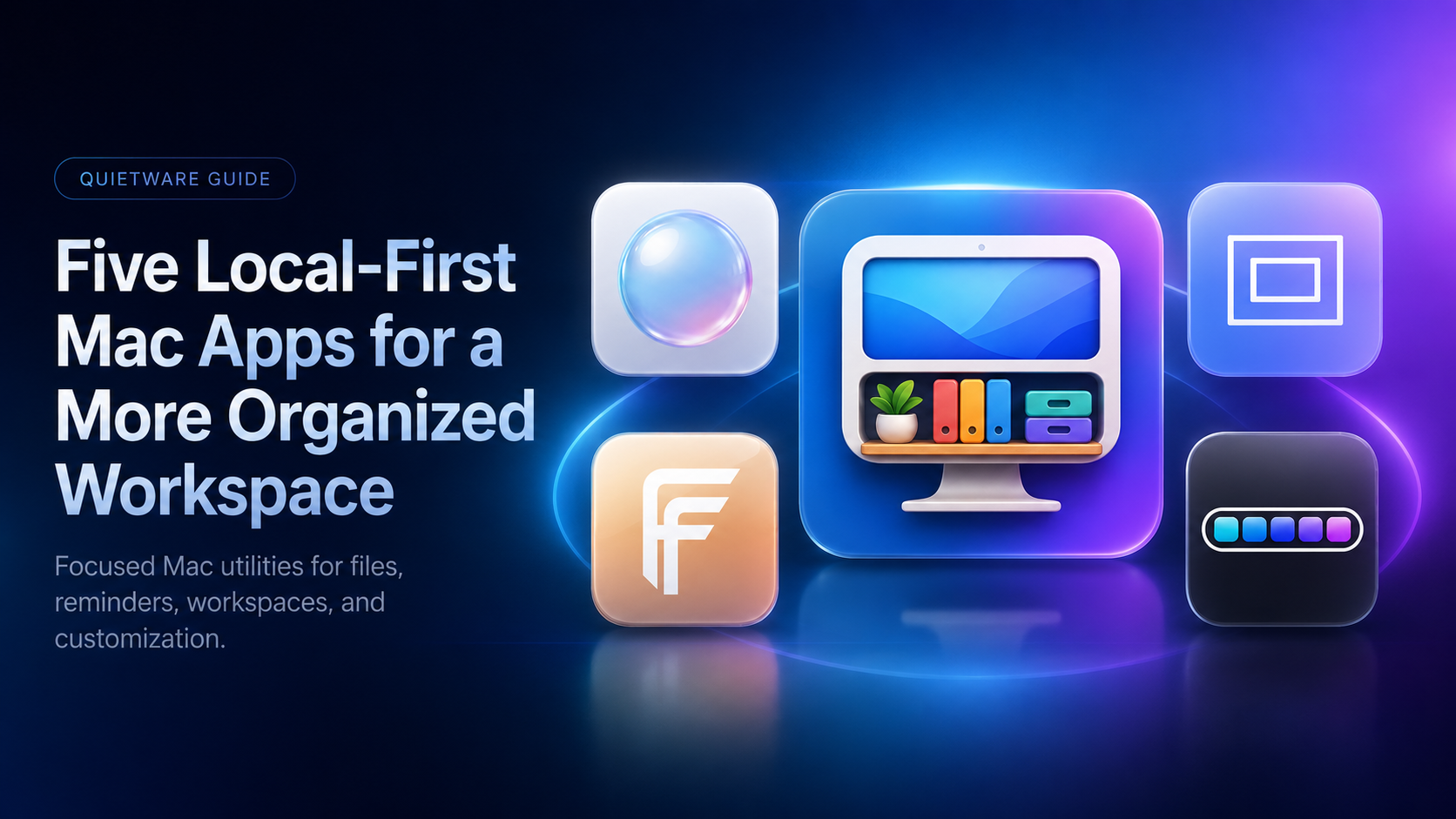
Why local-first Mac utilities are useful
A lot of productivity software asks you to create an account, sync everything, and adopt a large system before it solves a small problem. That can be useful for teams, but many personal Mac workflow problems are smaller and more immediate.
You may need a place for active files, a visible reminder, a recent download, a more readable Dock, or a saved workspace. Those jobs do not always need a subscription service or a database in the cloud.
QuietWare apps are designed for macOS and focused on specific workflow frictions. The local-first approach matters because these tools touch personal desktop context: files, reminders, workspaces, and visual preferences.
ScreenShelf: visual organization for active materials
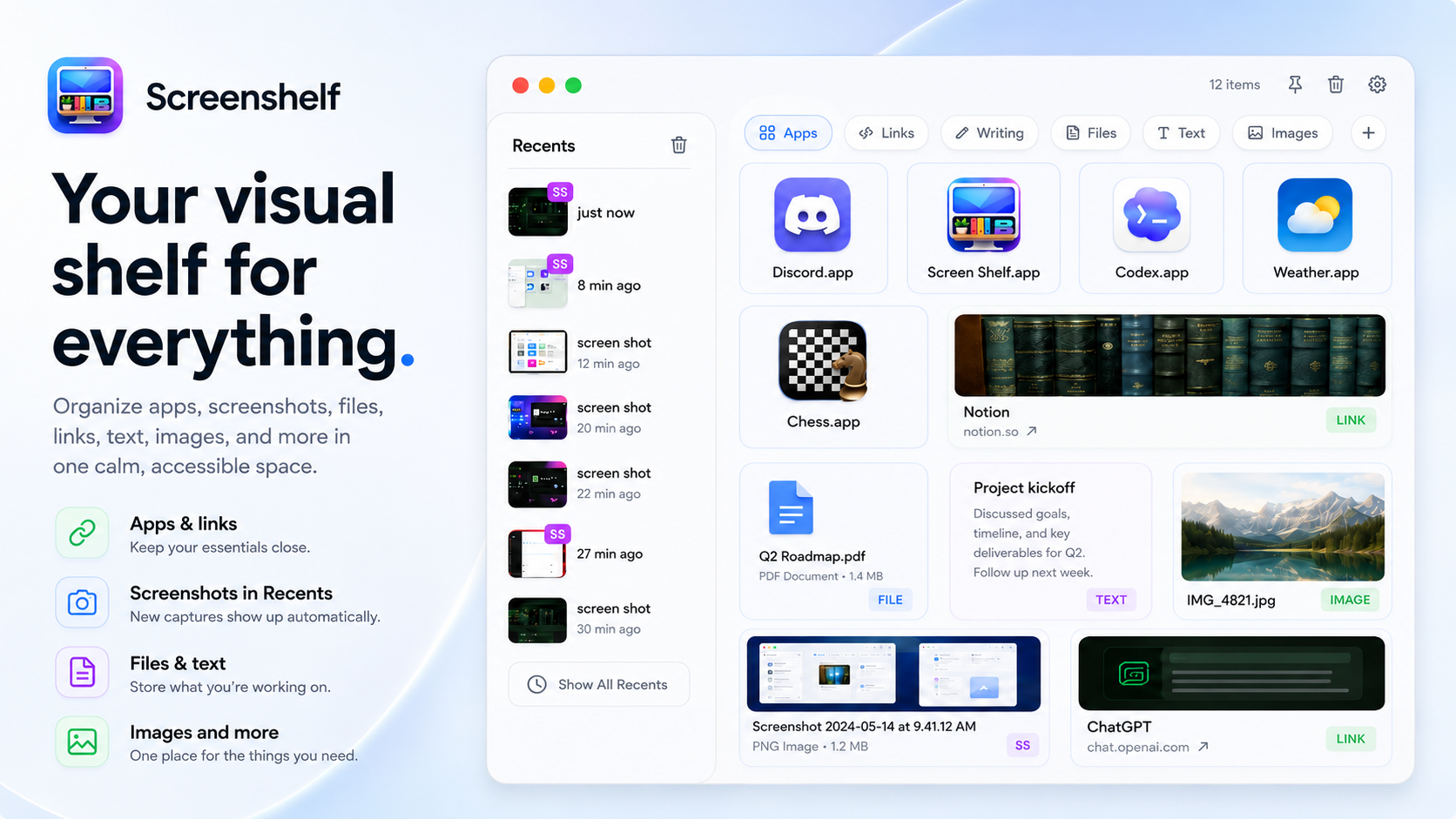
ScreenShelf gives you a visual shelf for files, screenshots, links, text, images, apps, and active project materials. It is useful when your desktop is becoming a temporary dumping ground but a normal folder feels too hidden for the things you are using right now.
The current product page mentions pages for different workflows, custom names and icons, colors, images, labels, a Recents panel, Light, Dark, and Glass modes, and pin on top. That makes it a good fit for writing, coding, design, studying, and planning.
Use ScreenShelf for active materials, not permanent storage. When a project is finished, move important files back into a real folder and clear the shelf so it stays useful.
PopNote: lightweight pop-up reminders
PopNote is for reminders that should appear without opening a full task manager. Its product page describes colorful floating bubble notes, menu bar access, quick timing options, daily and weekly repeats, Light and Dark Mode, and Apple Reminders sync.
That makes it useful for small tasks: take a break, make a call, move laundry, check an export, start a meeting, or follow up on something after a focused session.
PopNote works best when you use it selectively. If every thought becomes a pop-up, the reminders become noise. Keep it for moments that truly need to interrupt you at the right time.
File Fetch: recent files and copied text
File Fetch keeps recent files, screenshots, downloads, images, links, and copied text close from the menu bar. Its current page also lists actions such as open, reveal, rename, move, copy, trash, and saving or reusing snippets.
This solves a very common Mac problem: you just downloaded, exported, copied, or edited something, and now you need it again. Finder Recents and Spotlight can help, but they still require a search. File Fetch keeps the fresh stuff closer.
For built-in recovery methods, the guide on finding recently saved files on a Mac is a useful companion.
GeekDock: Dock and menu bar personalization
GeekDock is for making the Mac desktop feel more personal and visually consistent. The product page lists Dock colors, menu bar colors, Dock gradients and direction, wallpaper matching, folder icons, and file icons.
A visually coherent Dock and menu bar can make your setup easier to recognize and nicer to return to. The key is restraint. Customize the parts you see every day, but keep enough contrast that the Mac remains easy to use.
GeekDock currently lists Apple silicon only in its compatibility section, so check that page before installing on an Intel Mac.
FocusForm: saving and restoring workspaces
FocusForm helps when the problem is not one missing file but the whole workspace. Its product page describes saving apps, windows, websites, files, and folders into workspace snapshots so you can bring a setup back later.
Use it for repeatable modes: coding, writing, studying, client work, planning, or entertainment. A good saved workspace opens the right materials and reduces the boring setup steps between you and the project.
If your workspace also includes visual themes or wallpaper choices, keep those as part of your broader setup routine unless the FocusForm product page for your version lists them directly. The core value is restoring the work context you would otherwise rebuild manually.
The advantage of focused, one-time tools
Small utilities work best when they solve one job clearly. ScreenShelf organizes active materials. PopNote handles visible reminders. File Fetch keeps recent items nearby. GeekDock personalizes the desktop. FocusForm saves repeatable workspaces.
That focus keeps the apps easier to understand. It also avoids turning every workflow problem into another subscription or account. QuietWare apps are focused, one-time Mac utilities with optional support.
The practical benefit is simple: use the tool when the problem appears, then get back to the Mac work you were already doing.
How to choose the right QuietWare apps
If your main problems are active project clutter, recent files, reminders, and workspace restoration, ScreenShelf, FocusForm, File Fetch, and PopNote are the most relevant places to start.
GeekDock pairs naturally with those tools if you also want the desktop itself to feel more personal and readable.
You can browse the full app list from the QuietWare apps section and choose only the utilities that fit your workflow.
Conclusion
Local-first Mac apps are most useful when they remove small daily friction without asking you to adopt a whole new system. Keep active materials visible, make reminders timely, recover fresh files quickly, personalize the desktop, and save repeatable workspaces.
A calmer workspace does not need to be complicated. It just needs the right small tools in the places where your day tends to snag.
 Related: ScreenShelf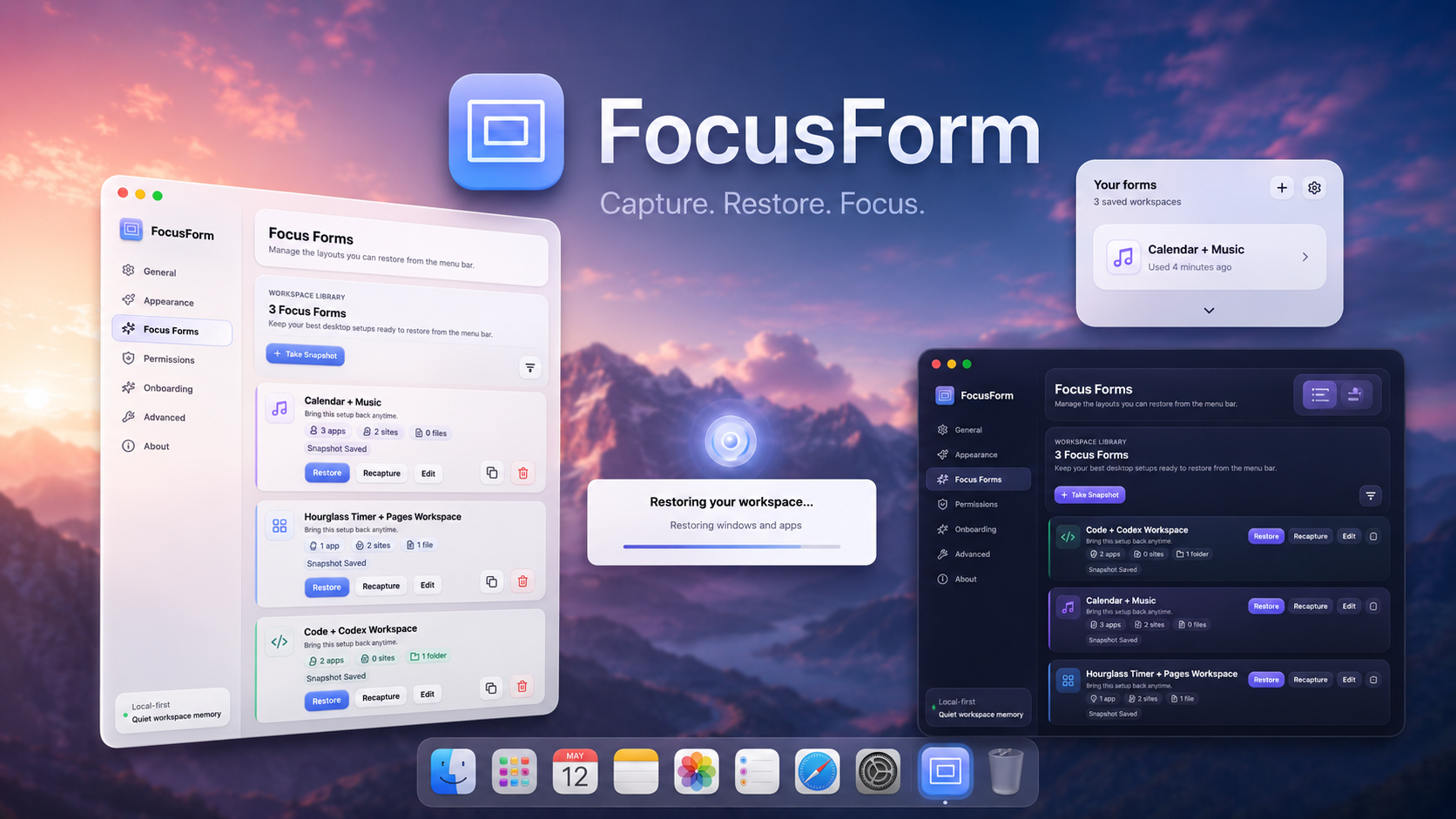
 Related: FocusForm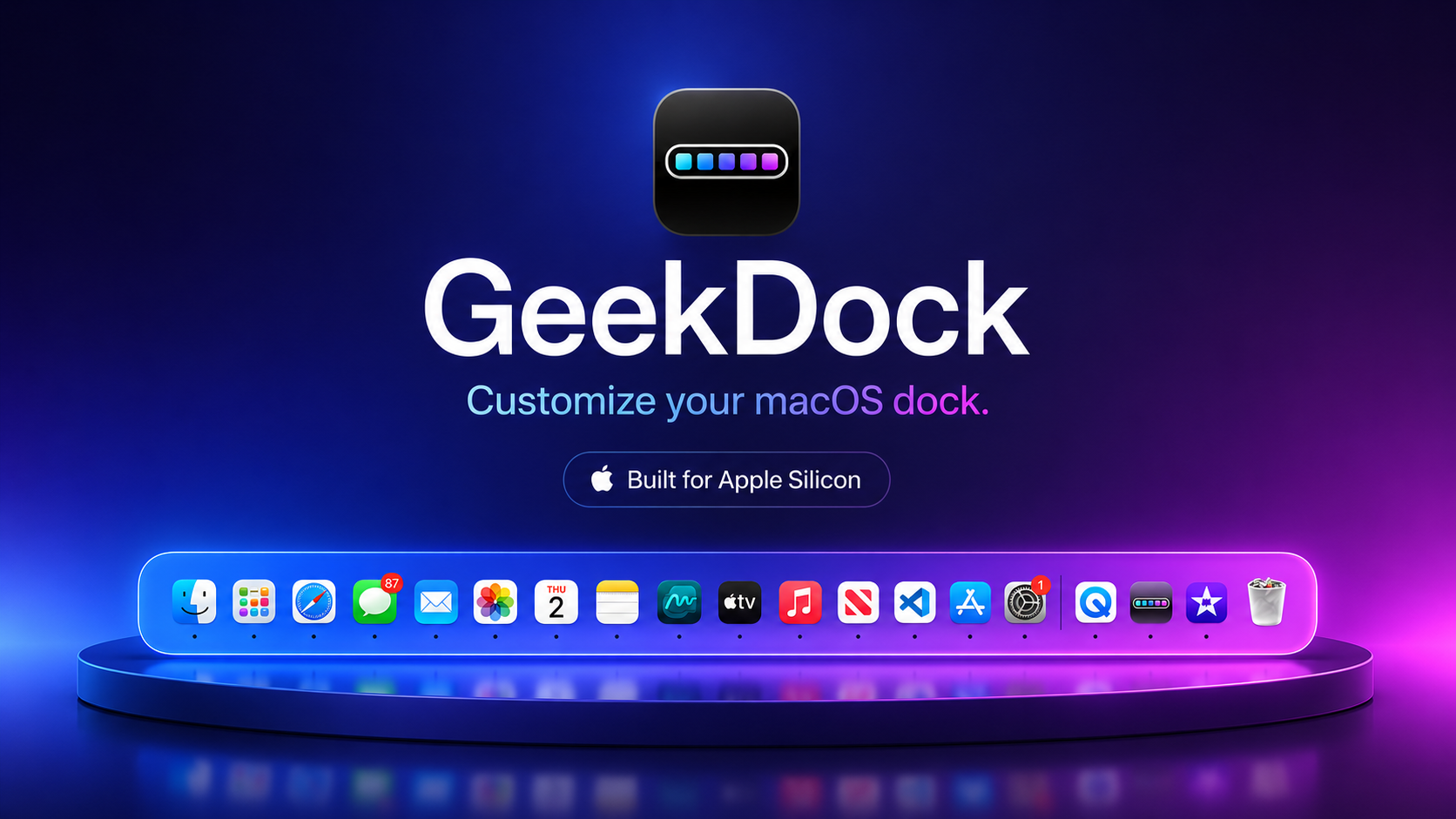
 Related: GeekDock